A tutorial on turning any picture into a cross-stitch chart using the online tools Xfloss and Pic2Pat: choosing a picture, setting up the palette and size, and getting and saving the finished chart.
Beginner25 minFree
Translated
Things you will learn
Ready-made cross-stitch charts don't always suit your taste, so you can design your own chart and bring it to life using online chart-making tools.
If you want a completely unique picture, you can draw and finish it in an image editor like Photoshop and then turn it into a chart; if you already have a picture you like online, you can turn that picture directly into a chart with the tool.
Two online tools are used: Xfloss — a detailed chart with a choice of color palette, size in stitch count, and number of colors; and Pic2Pat — an approximate chart of the size you need, without a strict color palette.
Which tool to use depends on the picture itself: for a one- or two-color picture, Pic2Pat works well, but for a picture with many colors, a detailed chart from Xfloss is a must.
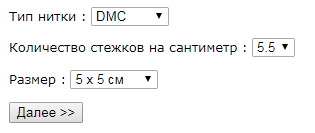
In Xfloss, you set the embroidery width, palette, maximum number of colors, model, brightness, and contrast, then generate the chart and choose the canvas size and number of thread strands; in Pic2Pat, you choose the finished size, thread, and stitches per 1 centimeter, and get 4 to 6 finished charts that differ in how bright their color scheme is.
What you'll get
You'll get a finished cross-stitch chart made from your own or a favorite picture, with no need to search for a ready-made chart online.
Materials and tools
Materials
A source picture, the image you want to turn into a cross-stitch chart; it can be your own drawing or a picture you like online
Tools
Xfloss online chart-making tool, for a detailed chart with a choice of color palette and stitch count
Pic2Pat online chart-making tool, for a quick approximate chart without a strict color palette
Image-editing software, such as Photoshop, for drawing or finishing a completely original picture before turning it into a chart (optional)
Preparation
Choose your picture
Decide on the image you want to turn into a chart. If you want a completely unique picture and already have an idea in mind, create it in Photoshop and finish drawing whatever you need; if you already have a picture you like online, use that one.
Decide which tool to use
Which tool to use depends entirely on the picture itself. If it's a one- or two-color picture, use Pic2Pat; if it has many colors, a detailed chart from Xfloss is a must.
Make a detailed chart in Xfloss
Here's an example of how to make a detailed chart with a choice of palette and size.
Decide on the picture and open the tool
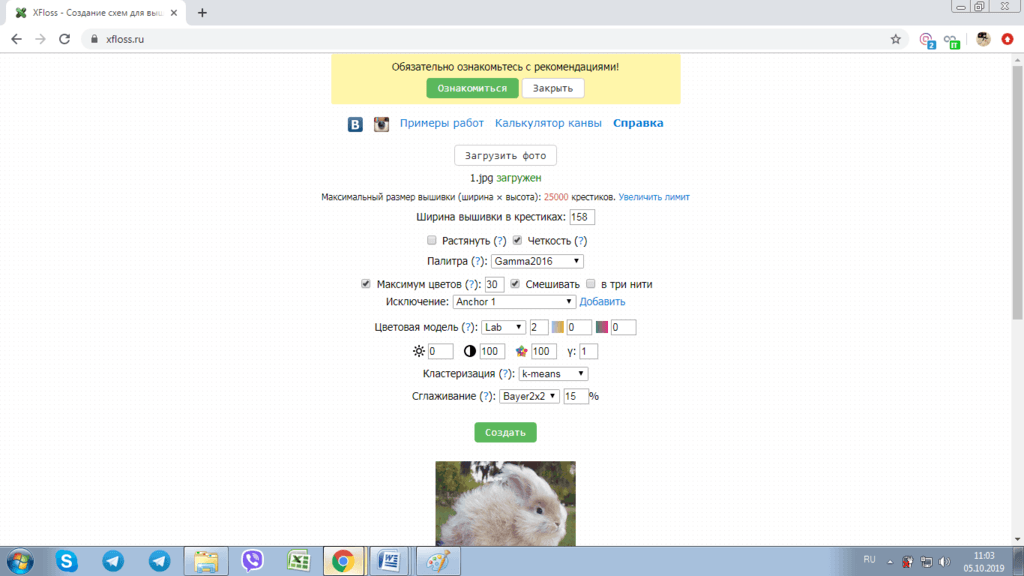
Decide on the picture and open the online chart-making tool.
The chart-making tool with an uploaded picture
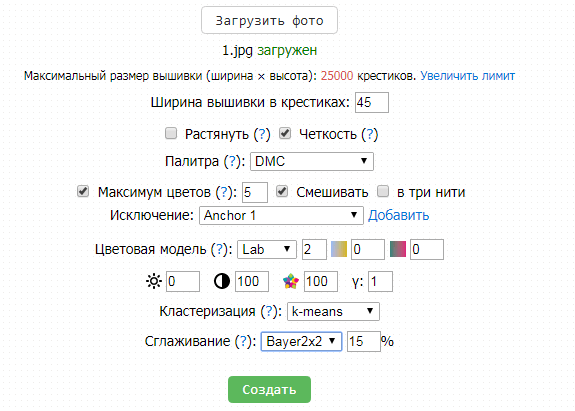
Upload the picture and set the parameters
Upload the picture and set the parameters you need. Set the approximate embroidery width, choose the palette you use, the maximum number of colors, the model, brightness, and contrast. Leave the rest of the settings at their defaults.
The chart settings panel
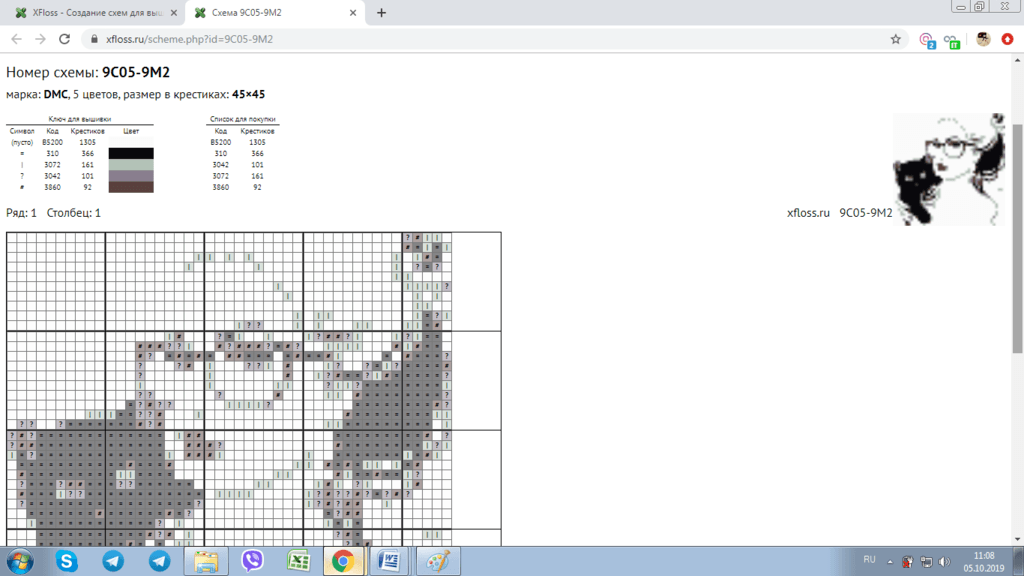
Generate the chart
Now click "Create" and wait for the result.
The chart preview
Choose the canvas and finish the chart
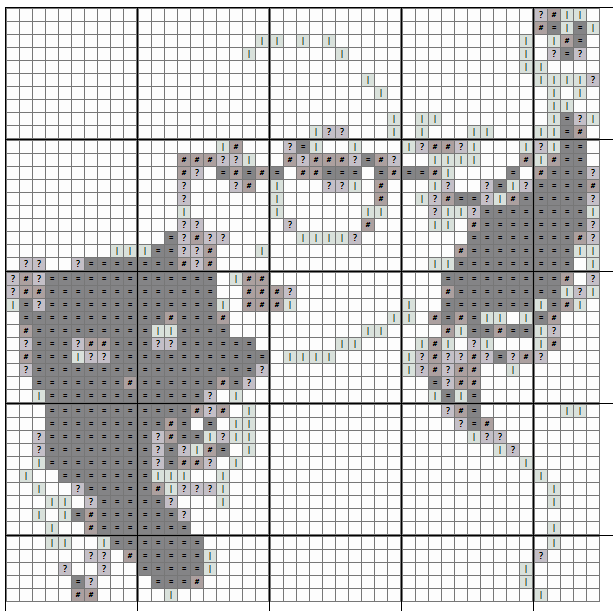
Then choose the canvas size and the number of thread strands, and you can also remove the background and any stray colors, then download or print the chart.
Canvas and thread settingsA finished cross-stitch chart
Make an approximate chart in Pic2Pat
Here's an example of making a chart with the second tool, and how it differs from the first.
Choose the picture and upload it
Start the same way, by choosing a picture and uploading it into the tool.
Set the size, thread, and stitch count
Choose the finished picture size, the thread, and the number of stitches per 1 centimeter. Now you can generate the chart. You can't set exact parameters here, since the chart is approximate — which colors you actually use is entirely up to you.
The Pic2Pat settings formChart parameters and colors
Get several chart options
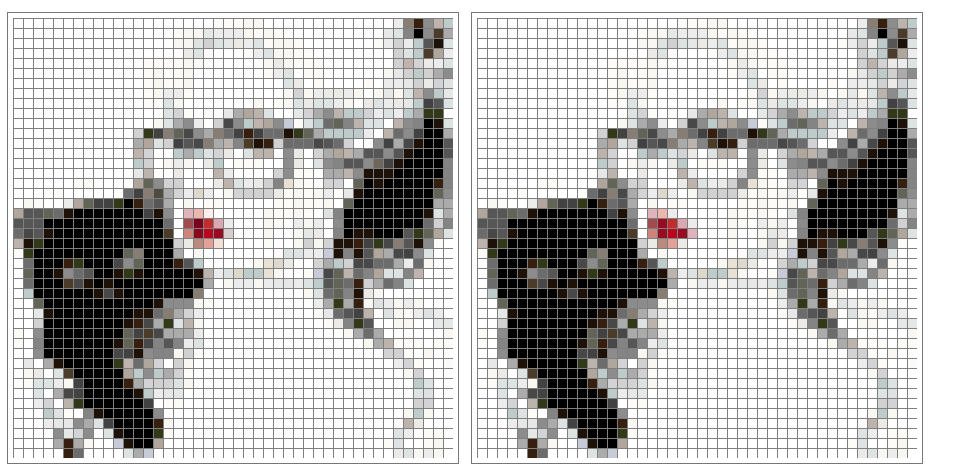
In the end, you'll get 4 to 6 finished charts that differ in how bright their color scheme is.
An example of a finished chart
Finish and variations
Finish
Now you know how to make your own cross-stitch chart
Whichever tool you choose, you'll be able to turn any picture you like into a cross-stitch chart, download or print it, and start stitching.
Variations
Start from a completely original drawing
If you want a completely unique picture, draw the idea yourself (or finish drawing it) in Photoshop, then turn the finished picture into a chart the same way.
Get a quick approximate chart
If the picture is simple — just one or two colors — you can skip the detailed setup in Xfloss and use Pic2Pat instead for a fast, approximate chart.
The finished chart in Xfloss looks different in color from the source picture.
Likely cause
The model, brightness, and contrast weren't adjusted for the specific picture.
How to fix it
Adjust the model, brightness, and contrast for your specific picture until the palette looks the way you want, or use Pic2Pat for a quick approximate chart instead.
The chart ends up with too many colors
Problem
The chart requires too many thread colors to be practical to stitch.
Likely cause
The maximum number of colors was set too high for a picture with many colors.
How to fix it
Lower the maximum number of colors before generating the chart, or use Pic2Pat if a strict palette isn't essential.
Not sure which tool to pick for your picture
Problem
It's hard to decide whether to use Xfloss or Pic2Pat for a particular picture.
Likely cause
The choice depends on how many colors are in the picture, which isn't always obvious at first glance.
How to fix it
For a one- or two-color picture, use Pic2Pat; for pictures with many colors, use Xfloss, since it lets you fine-tune the palette in detail.
?FAQ
Which online tool should I choose for a cross-stitch chart?
It depends on the picture: for a one- or two-color picture, Pic2Pat is enough, but for a picture with many colors, a detailed chart from Xfloss works better.
Can I use my own drawing instead of a photo?
Yes — if you want a completely unique picture, draw it (or finish an existing idea) in software like Photoshop, then upload it to the chart-making tool.
What can I adjust in Xfloss before generating the chart?
The embroidery width, the color palette, the maximum number of colors, the model, brightness, and contrast; you can leave the rest of the settings at their defaults.
Can I set exact colors in a Pic2Pat chart?
No — Pic2Pat only gives an approximate chart, and choosing the exact colors is entirely up to you.
How many chart options does Pic2Pat generate?
4 to 6 finished charts, differing in how bright their color scheme is.
Your project
Log in to track your project, attach photos, and publish your result into the shared feed.

 Beginner25 minFree